How to Use Transparent PNG Clipart in Canva (and Keep the Background Clear)
Upload PNG clipart to Canva, layer it on cards and shirt designs, and export with a transparent background. Also covers which Canva plan you need.
Canva is the fastest way to turn a folder of PNG clipart into a card, a menu or a shirt design. Transparent PNGs drop straight onto any background, so you can layer objects without white boxes around them.
1. Upload your PNG files
- Open a design in Canva.
- Click Uploads in the left panel, then Upload files.
- Select the PNGs you downloaded. You can select several at once.
Canva keeps your uploads, so you only do this once per bundle.
2. Set the right canvas size
Choose the size of the finished product before you place any art:
- Greeting card (A2, folded): 5.5 × 4.25 in front panel
- Place card: 3.5 × 2 in
- Shirt design: 12 × 16 in at 300 DPI (3600 × 4800 px)
- Letter or A4 page: for journals and menus
Use the PNG size guide to check that the art is big enough for the print size.
3. Layer and arrange
- Drag a PNG onto the page. The transparent areas stay clear, so the background colour shows through.
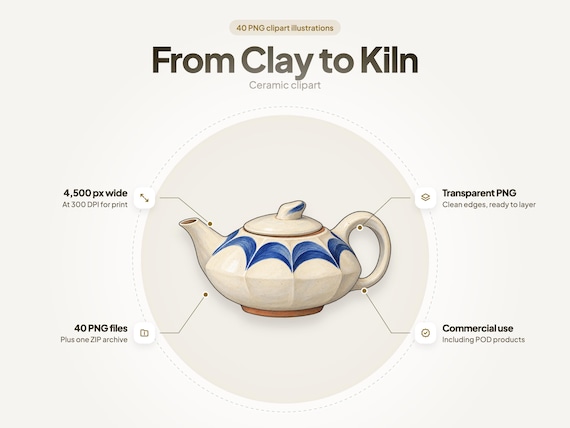
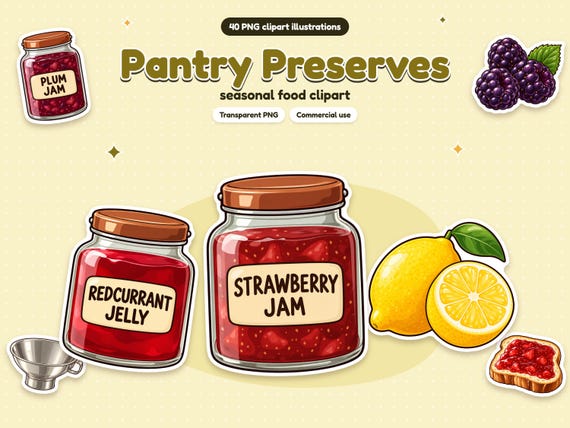
- Use Position → Forward / Backward to stack items, such as a teapot in front of a jam jar.
- Hold Shift while resizing to keep proportions.
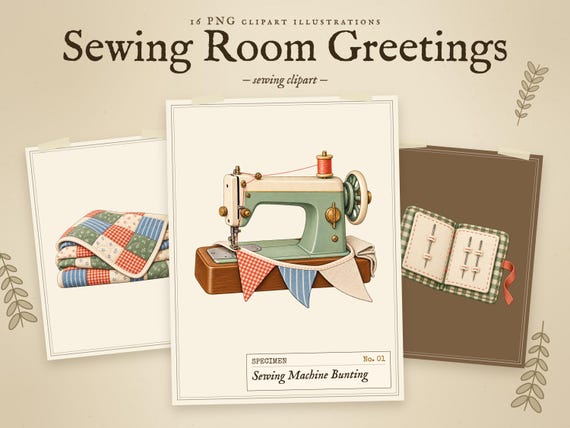
- Add your own text. Clipart without lettering, like the sewing bundle, leaves space for a greeting.
4. Export with a transparent background
For shirt designs and stickers you need the background removed in the exported file:
- Delete or hide any background colour.
- Click Share → Download.
- Choose PNG and tick Transparent background.
The transparent-background option is a paid Canva feature (Pro, Teams and similar plans). On the free plan, export to PDF Print for cards and paper projects, where a white background doesn't matter.
5. Export for printing
- Home printing or a print shop: use PDF Print, and add bleed if your printer asks for it (File → Show print bleed).
- Print-on-demand: use PNG with a transparent background at the size your POD platform lists for the product.
Common mistakes
- Blurry print: the clipart was stretched past its pixel size. Use a bigger file or print smaller.
- White box around the art: the file was a JPG, or the page background was still on when exporting.
- Colours look different on paper: screens show RGB light, printers use ink. Print a test page first.
Licensing in Canva designs
You can sell the printed result under a commercial-use license. You can't share the design as an editable Canva template that contains the art, because that hands the art to someone else. See the license page.