Make Stickers with PNG Clipart and Cricut Print Then Cut
Turn transparent PNG clipart into stickers with Cricut Print Then Cut – sizing, sticker paper, offset borders, the printable area and how to sell them under a commercial license.
Transparent PNG clipart is ideal for stickers: Cricut Design Space can cut around the art's outline automatically, so each object becomes its own sticker.
What you need
- A Cricut cutting machine that supports Print Then Cut
- An inkjet printer
- Printable sticker paper (matte, glossy or clear) or printable vinyl
- PNG clipart with a transparent background
1. Upload the PNG
- In Design Space, click Upload → Upload Image and choose the PNG.
- Design Space detects the transparent background, so you usually don't need to erase anything.
- Save it as a Print Then Cut image.
2. Size it and add an offset
- Resize the sticker on the canvas. Two to three inches is a common size for planner and laptop stickers.
- Select the image and click Offset to add a white border around the art. A border of about 0.1 in makes cutting more forgiving.
- Attach the offset outline and the image together, and set the operation to Print Then Cut.
3. Mind the printable area
Print Then Cut has a maximum image area that depends on your machine and paper size. On letter paper, Cricut lists about 7.44 × 9.94 inches. Check Print Then Cut page size in Design Space for your machine, and arrange several small stickers on one sheet rather than one large sticker.
4. Print and cut
- Click Make It, then Send to Printer. Turn on Add Bleed so the edge colour reaches the cut line.
- Set the printer to its best quality and the right paper type.
- Place the sheet on the mat and load it. The machine reads the registration marks before cutting.
- Choose the material setting for your sticker paper and do a test cut first.
Clipart that works well as stickers
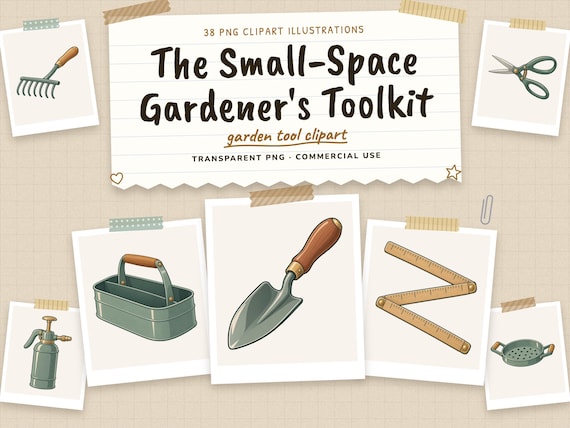
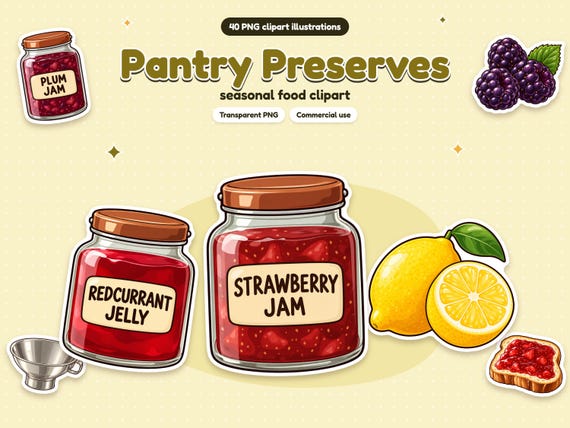
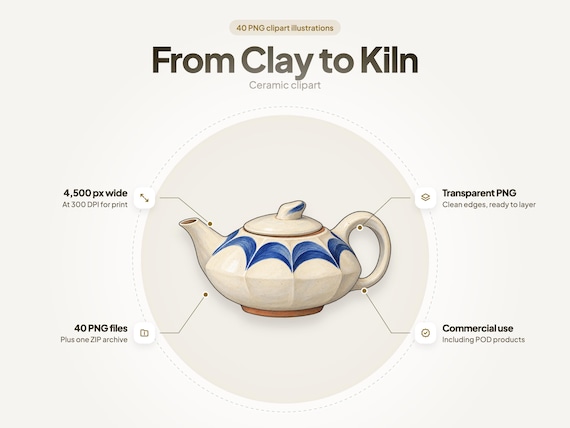
- Single objects with clean edges: watering cans, jars, teapots and tools. Collections with lots of separate items, like the 38 garden tools or the 40 pottery pieces, give you a full sticker sheet theme.
- Avoid tiny detached details: thin stems or floating dots don't cut cleanly at small sizes. Increase the offset so they stay attached.
Selling stickers you made
Physical stickers you print and cut are finished physical products, which a commercial-use license like the Little Loom Arts license allows. Selling the sticker sheet as a digital download or Print Then Cut file is not allowed, because the buyer would receive the artwork itself.